Learn how to use Reown AppKit to enable wallet connections and interact with Tenderly Virtual Testnets.
Learn how to use Reown AppKit to enable wallet connections and interact with Tenderly Virtual Testnets. With AppKit, you can provide seamless wallet connections, including email and social logins, on-ramp functionality, smart accounts, one-click authentication, and wallet notifications, all designed to deliver an exceptional user experience. With Tenderly’s Virtual TestNets, you can replicate real networks for various stages of your Web3 app development.
This guide assumes you have already installed and configured Reown AppKit. If you haven’t please follow the installation guide.For this tutorial, we’ll be using Next.js, though you can use any other framework compatible with AppKit.
Navigate to Tenderly Dashboard and login. If you don’t have an account already, then please sign up.Now, navigate to “Virtual TestNets” on the dashboard.
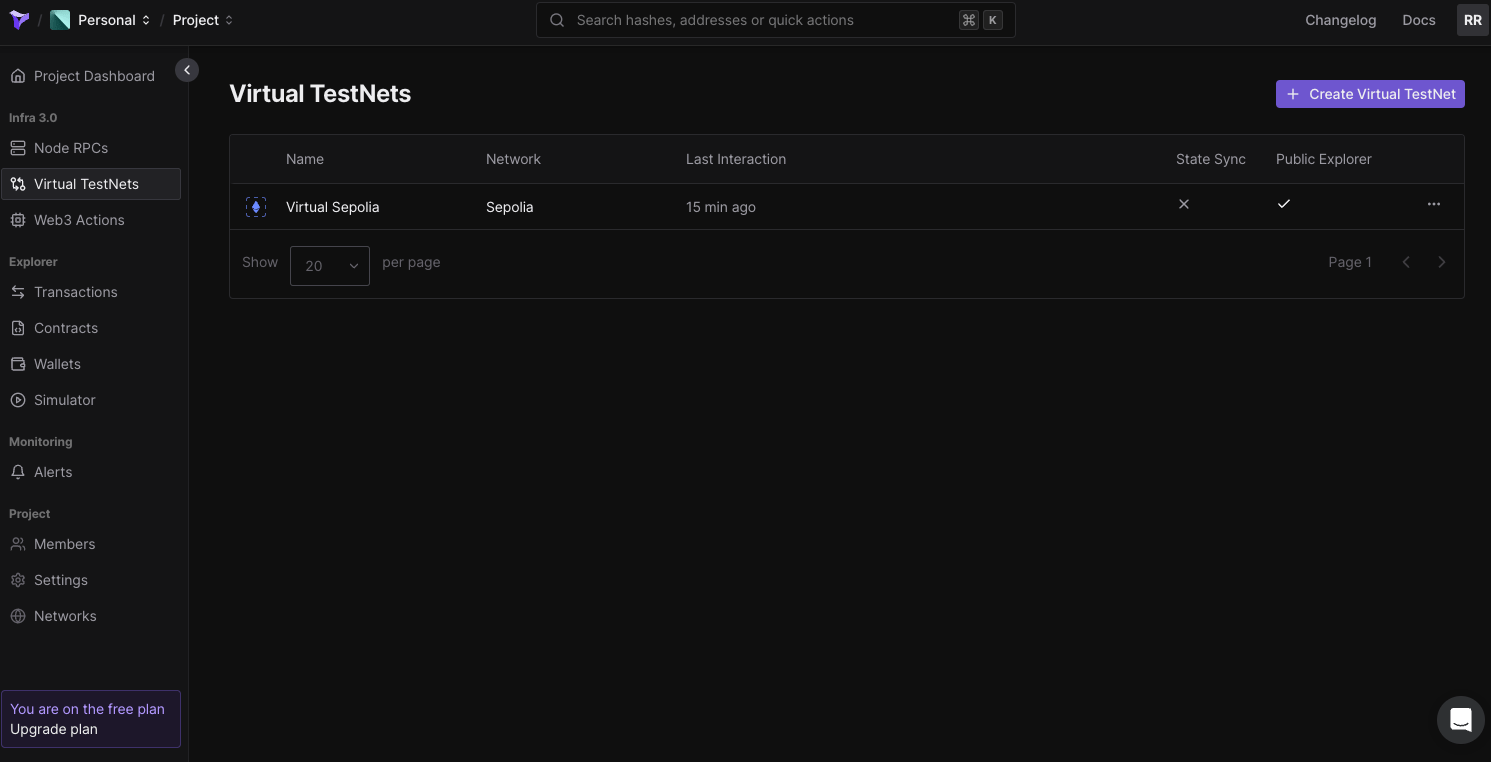
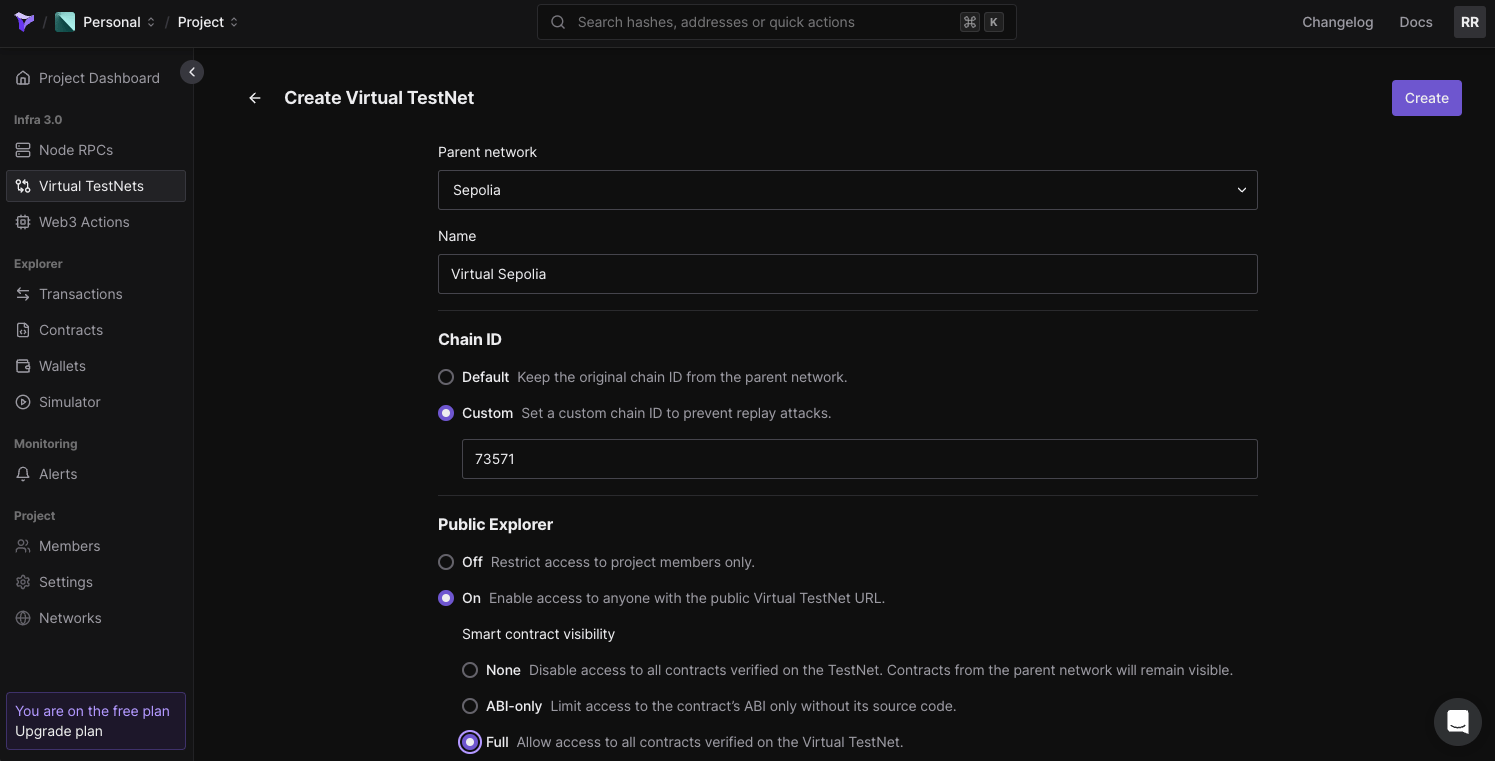
Click on “Create Virtual TestNet.” Next, you’ll be prompted to select the parent network. For simplicity, select “Sepolia” as the parent network, though you can choose any network you prefer.Now, enter a name for your Virtual TestNet. Under “Chain ID,” select “Custom” and enter a unique chain ID, like “73571,” to avoid conflicts with the existing Sepolia chain. Set “Public Explorer” to “On” and “Smart Contract Visibility” to “Full.”
Now, click on “Create” to set up the Virtual TestNet. You will see that your Virtual TestNet has been created, and you can find the RPC and other relevant information for it. Please copy the HTTPS URL under “Public” as this will be your Virtual TestNet’s RPC URL.
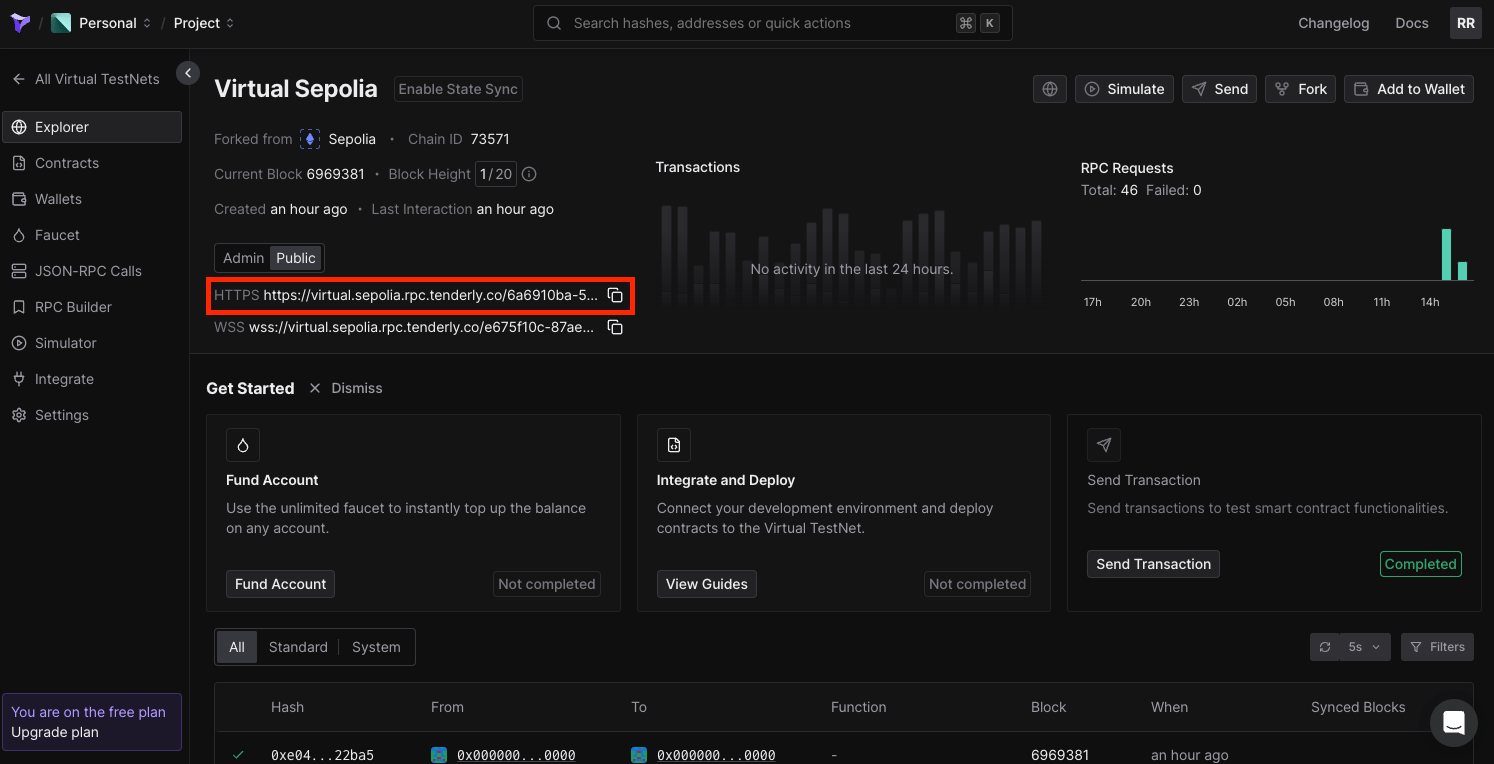
Before we build the app, let’s first configure our .env file. On the root level of your code directory, create a new file named .env.Open that file and create a new variable NEXT_PUBLIC_PROJECT_ID. You will assign the project Id that you copied in the previous step to this environment variable that you just created. You need to do the same for TENDERLY_VIRTUAL_TESTNET_RPC. This is what it will look like:
Please make sure you follow best practices when working with secret keys and other sensitive information. Environment variables that start with NEXT_PUBLIC will be exposed by your app, which can be misused by bad actors.
In order to set up Tenderly’s Virtual TestNet with AppKit, you need to first configure your Tenderly Virtual TestNet as a custom chain.Inside your /app directory, create a new file named tenderly.config.ts. Now, paste the code snippet shared below inside the code file, i.e., app/tenderly.config.ts.
app/tenderly.config.ts
import { defineChain } from "@reown/appkit/networks";export const vTestnet = defineChain({ id: 73571, // Add this to match the chain Id you set for your Virtual TestNet caipNetworkId: "eip155:73571", chainNamespace: "eip155", name: "Virtual Sepolia", nativeCurrency: { name: "vSepolia", symbol: "vETH", decimals: 18 }, rpcUrls: { default: { http: [process.env.TENDERLY_VIRTUAL_TESTNET_RPC!], }, }, blockExplorers: { default: { name: "Tenderly Explorer", url: "https://dashboard.tenderly.co/explorer/vnet/6a6910ba-5831-4758-9d89-1f8e3169433f", // replace with your Virtual TestNet's explorer URL }, }, contracts: { ensRegistry: { address: "0x00000000000C2E074eC69A0dFb2997BA6C7d2e1e", }, ensUniversalResolver: { address: "0xE4Acdd618deED4e6d2f03b9bf62dc6118FC9A4da", blockCreated: 16773775, }, multicall3: { address: "0xca11bde05977b3631167028862be2a173976ca11", blockCreated: 14353601, }, },});
id — set this to the chain Id that you passed while creating the Virtual TestNet on Tenderly.
url — set this with your Virtual TestNet’s explorer URL. You can find this URL within your Virtual TestNet’s configuration on Tenderly Dashboard.
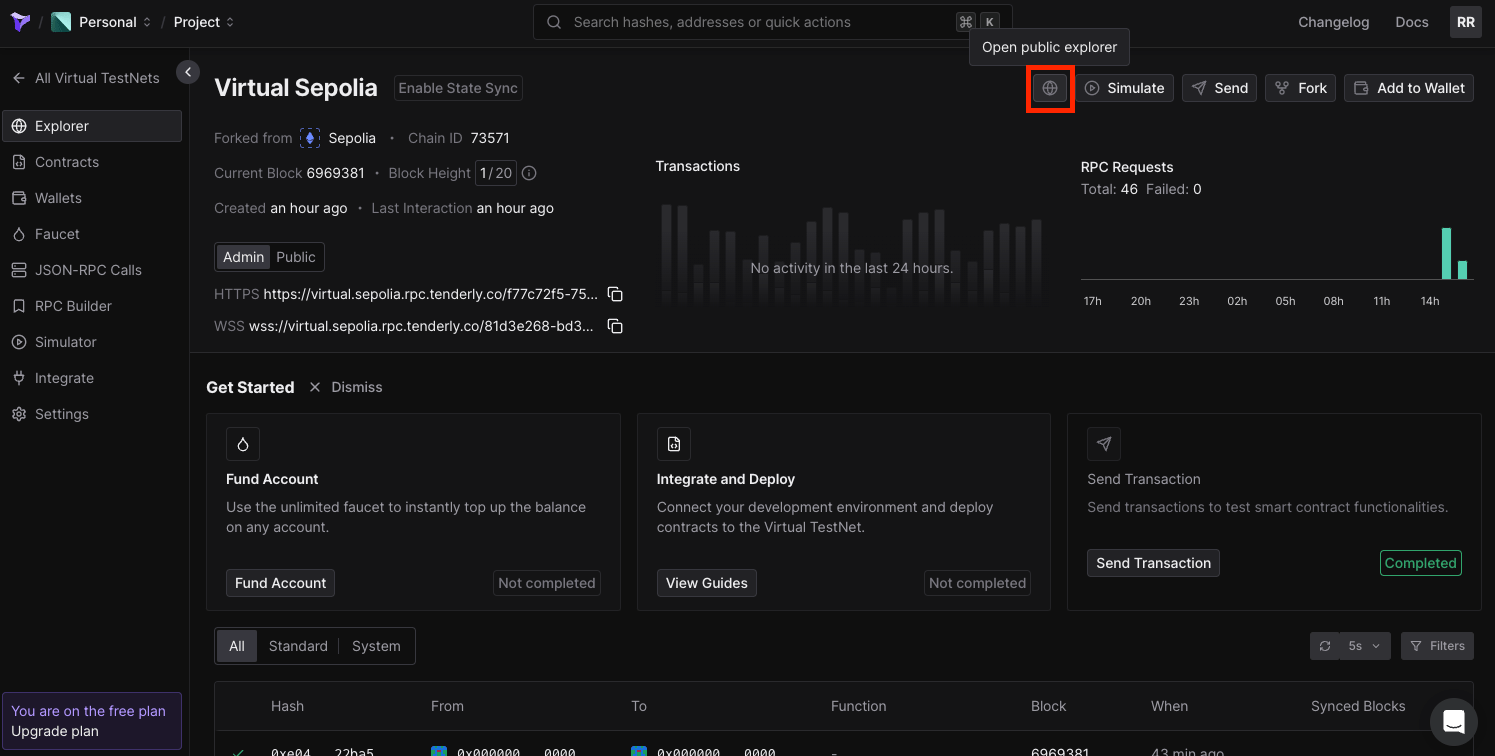
Now, in your config/index.tsx file, import vTestnet from app/tenderly.config.ts. You’ll also need to configure transports within the WagmiAdapter function. Refer to the code snippet below.
config/index.tsx
import { cookieStorage, createStorage, http } from "@wagmi/core";import { WagmiAdapter } from "@reown/appkit-adapter-wagmi";import { mainnet, arbitrum } from "@reown/appkit/networks";import { vTestnet } from "@/app/tenderly.config";// Get projectId from https://dashboard.reown.comexport const projectId = process.env.NEXT_PUBLIC_PROJECT_ID;if (!projectId) { throw new Error("Project ID is not defined");}export const networks = [mainnet, arbitrum, vTestnet];// Set up the Wagmi Adapter (Config)export const wagmiAdapter = new WagmiAdapter({ storage: createStorage({ storage: cookieStorage, }), ssr: true, transports: { [vTestnet.id]: http(process.env.TENDERLY_VIRTUAL_TESTNET_RPC!), }, networks, projectId,});export const config = wagmiAdapter.wagmiConfig;
Now, inside your context/index.tsx file, you also need to import vTestnet and pass it as one of the supported networks within the createAppKit function, as shown below.
context/index.tsx
"use client";import { wagmiAdapter, projectId } from "@/config";import { createAppKit } from "@reown/appkit/react";import { mainnet, arbitrum } from "@reown/appkit/networks";import { vTestnet } from "@/app/tenderly.config";import { QueryClient, QueryClientProvider } from "@tanstack/react-query";import React, { type ReactNode } from "react";import { cookieToInitialState, WagmiProvider, type Config } from "wagmi";// Set up queryClientconst queryClient = new QueryClient();if (!projectId) { throw new Error("Project ID is not defined");}// Set up metadataconst metadata = { name: "appkit-example", description: "AppKit Example - EVM", url: "https://exampleapp.com", // origin must match your domain & subdomain icons: ["https://avatars.githubusercontent.com/u/37784886"],};// Create the modalconst modal = createAppKit({ adapters: [wagmiAdapter], projectId, networks: [mainnet, arbitrum, vTestnet], metadata: metadata, features: { analytics: true, // Optional - defaults to your Cloud configuration },});function ContextProvider({ children, cookies,}: { children: ReactNode; cookies: string | null;}) { const initialState = cookieToInitialState( wagmiAdapter.wagmiConfig as Config, cookies ); return ( <WagmiProvider config={wagmiAdapter.wagmiConfig as Config} initialState={initialState} > <QueryClientProvider client={queryClient}>{children}</QueryClientProvider> </WagmiProvider> );}export default ContextProvider;
You can now run the app and test it out. In order to do so, run the command given below.
npm run dev
If you are using alternative package managers, you can try either of these commands — yarn dev, pnpm dev, or bun dev.